When your internet starts crawling—or drops completely—it can throw off your entire day, especially if you work remotely, stream media, or manage online business tools. But before you pick up the phone to call your internet provider, there are several steps you can take to resolve the issue on your own.
Here’s a complete guide to troubleshooting slow internet speeds without relying on tech support.
1. Start with a speed test
Visit a site like Speedtest or Fast.com to check your current download and upload speeds. Compare them with the plan you’re paying for. If you’re subscribed to 300 Mbps and only getting 40 Mbps consistently, you may have a performance issue or signal bottleneck.
2. Restart your modem and router
Power cycling your modem and router can often fix temporary glitches. Unplug both devices, wait at least 30 seconds, then plug them back in. Give the system a couple of minutes to fully reboot.
3. Reduce Wi-Fi interference
Your Wi-Fi signal can be affected by walls, appliances, and other nearby networks. To boost performance:
- Move your router to a central, open location
- Avoid placing it near metal objects, microwaves, or thick concrete walls
- Switch to the 5GHz band if your router supports it—it’s typically faster and less congested than 2.4GHz
4. Limit background bandwidth usage
Devices and applications running in the background could be consuming your internet without you noticing. These include:
- Cloud backups
- Streaming video in the background
- Large file downloads
- App or software updates
Use network monitoring tools like Fing or GlassWire to identify which devices or apps are consuming bandwidth.
5. Scan for malware
Viruses and malware can slow your connection by using bandwidth or interfering with network settings. Run a full system scan using a trusted antivirus like Bitdefender or Malwarebytes.
6. Try a wired connection
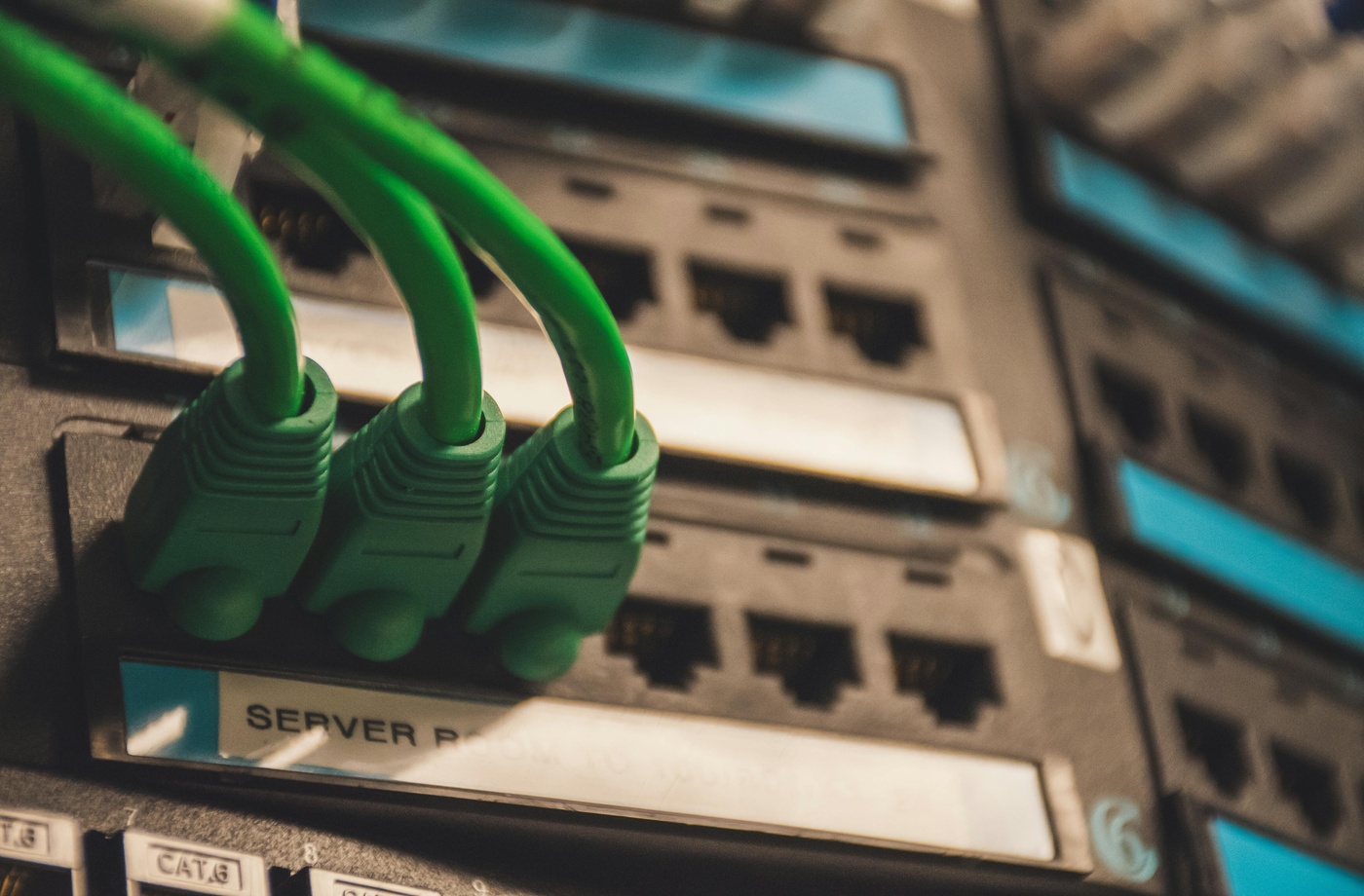
Wi-Fi is convenient, but it’s not always consistent. Connect directly to your router using an Ethernet cable for better speed and stability—especially when working from a desktop or in a fixed location.
7. Upgrade outdated hardware
Modems and routers older than five years may not support today’s internet speeds. Make sure your router uses at least Wi-Fi 5 (802.11ac), or upgrade to a Wi-Fi 6 model for improved performance and bandwidth handling.
8. Review your internet plan
Your slow speeds may be the result of a plan that no longer matches your needs. If multiple users are streaming, gaming, or attending video calls, you may need to upgrade.
Check for higher-speed plans from Verizon, AT&T, or T-Mobile. These providers frequently update their offerings, and new plans may offer better value than what you’re currently using.
9. Set up a mobile backup
If your area has frequent outages, consider using a 5G or LTE hotspot as a backup connection. Carriers like Verizon, AT&T, and T-Mobile offer mobile hotspot plans that can serve as temporary internet failover.
You can also reduce your bill by earning cashback with a Verizon gift card, getting rewards with an AT&T gift card, or saving money with a T-Mobile gift card. These gift cards can be applied directly to your bill when purchased through Fluz.
The bottom line
Before you call your provider, try these self-diagnostic steps to get your internet back up to speed. Whether it’s resetting hardware, repositioning your router, or monitoring data usage, you may be able to solve the issue in just a few minutes—and even save money while you’re at it by paying with cashback-enabled gift cards.